
This is currently a draft page and is under review
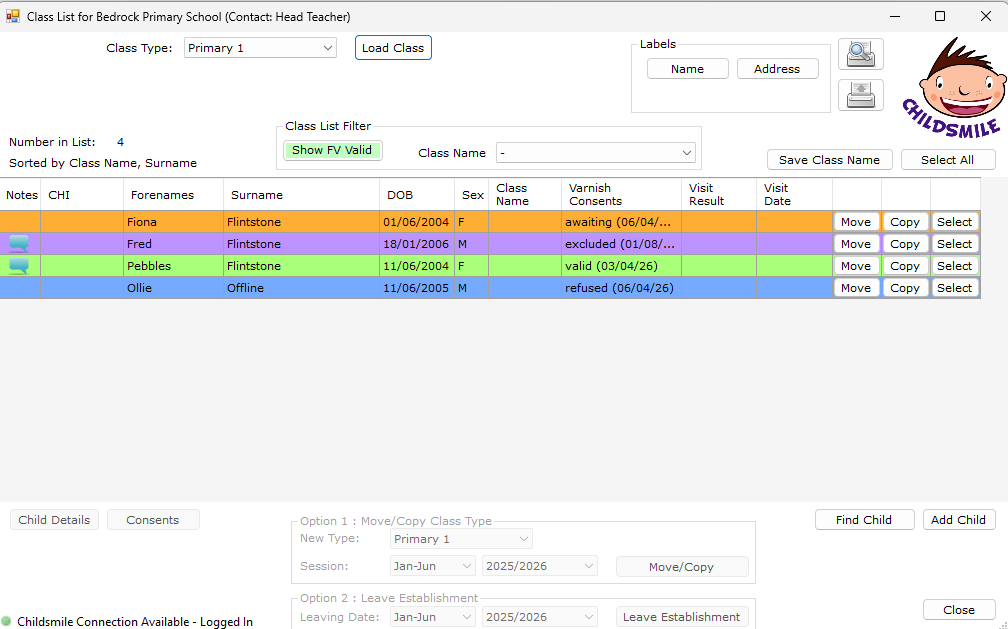
The class list screen provides an overview of all children assigned to a selected class and allows you to manage their fluoride varnish activity at class level.
Children’s details only need to be added to the system once. These may be entered locally or forwarded to HIC for entry if requested. A child search must always be completed before adding a new child to prevent duplicate records.
Loading a class list
- Use the drop‑down list in the top left of the screen to select the required class.
- Select Load Class to display the class list.
Viewing and sorting information
Each row represents one child within the selected class.
- Click on any column heading to sort the list (for example by surname or date of birth).
- A triangle icon shows whether the sort order is ascending or descending.
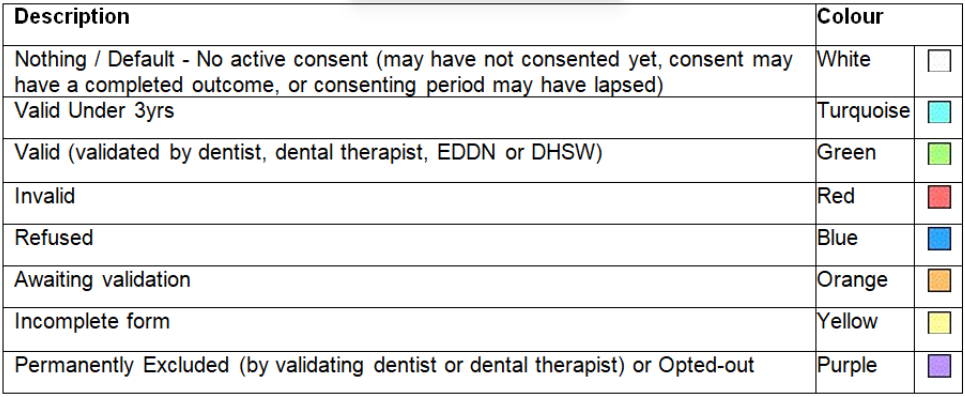
- Colour shading supports quick visual identification of fluoride varnish status (as below).

Keeping class lists up to date
Each visit to an establishment provides an opportunity to review and update class lists to ensure they remain accurate.
- Class names can be typed directly into the relevant child’s row.
- Select Save Grid Changes to store updates against the class list record.
Selecting a child
Selecting a child by clicking anywhere in their row will activate additional options:
From this screen, it is also possible to move a child to a different establishment (see separate guidance on Moving a child).
Additional information
Additional notes or alerts relating to a child may be visible by hovering over or selecting the speech bubble icon in the left‑hand column.
Annual procedure for moving children in the system
There is an automated procedure that takes place early in the School summer break where children are rolled forward on the system e.g. primary 1 children will be automatically rolled in to Primary 2.